Paste Into Webflow: PaneFlow Slideshows Without an App
Getting a PaneFlow slideshow into Webflow used to mean installing a Webflow app, connecting your Webflow account, and granting it access to your site's custom code. Starting today, it's a copy and a paste.
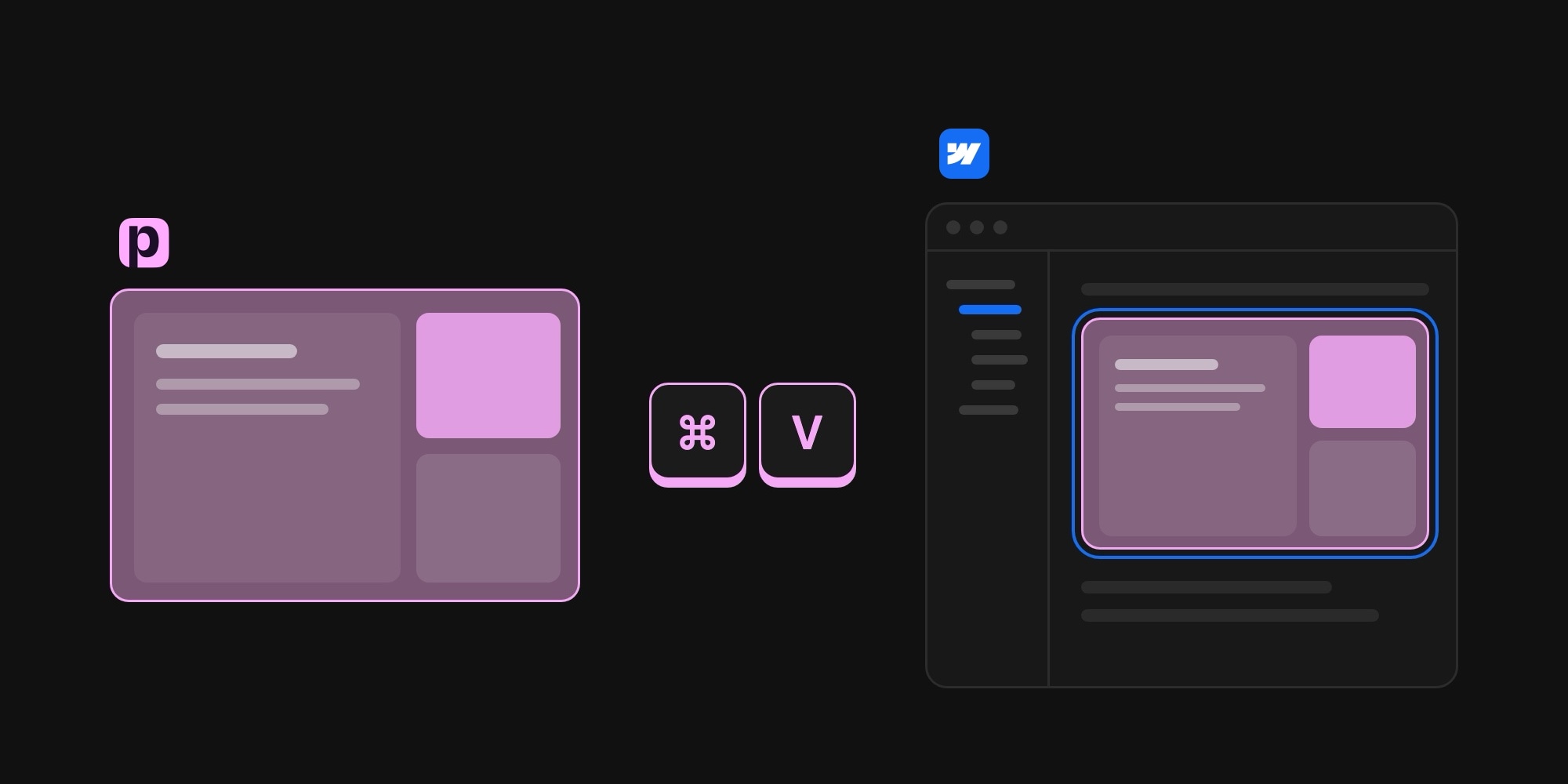
Publish your slideshow, click Copy in PaneFlow, switch to the Webflow Designer, and press Cmd + V. That's it. There is nothing to install, nothing to authorize, and no account to connect.
#How It Works
#Step 1: Publish Your Slideshow to CDN
Open your project in PaneFlow, click the Export Project button in the top toolbar (or press Cmd + S), and under Embed / Publish click Publish (or Update if it's already published). Your slideshow's styles and script are now hosted on our global CDN. New to this? Read more about Publish to CDN.
#Step 2: Copy It for Webflow
Once your slideshow is published, the instructions open automatically (you can always get back to them with the Instructions button). Switch to the Webflow tab. You'll see two buttons - Copy iFrame and Copy Layout. More on the difference below.
#Step 3: Paste Into the Webflow Designer
Open your site in the Webflow Designer, select the element where you want the slideshow to go - a section, for example - and press Cmd + V (Ctrl + V on Windows). The slideshow appears on the canvas and in the Navigator, ready to move around like any other element.
#Step 4: Publish Your Webflow Site
Publish your site as usual, and the slideshow goes live with it.
#Two Ways to Paste
Different sites need different things, so you can paste a slideshow in two ways.
#iFrame: Works On Every Webflow Plan
Copy iFrame pastes a container with an iframe that loads your published slideshow. It needs no custom code, so it works on every Webflow plan, including free. The slideshow runs right inside the Designer canvas, so you see exactly what your visitors will see while you design around it. The container is already sized to your slideshow's aspect ratio and scales with the width of its parent.
#Layout: Native Webflow Elements
Copy Layout pastes the slideshow as real Webflow elements: the slideshow, every block, and every text, image, and shape inside it show up in the Navigator with their own classes. Text is regular HTML on your page - not hidden inside an iframe - so search engines can read it. A Code Embed inside the slideshow loads its styles and script from our CDN.
A few things to know about Layout:
- It needs a paid Webflow Site plan. Webflow only runs custom code, including Code Embed elements, on paid Site plans.
- The Designer canvas doesn't run custom code. You'll see a box at the slideshow's size with its content, but not the final layout, animations, or transitions. To see the slideshow in action, click Preview and enable Custom Code, or check your published site.
- Some elements are iFrame-only. Custom Code elements aren't included in the Layout, and embedded YouTube and Vimeo videos may not play correctly. If your slideshow uses them, go with iFrame.
#Which One Should I Use?
| iFrame | Layout | |
|---|---|---|
| Webflow plan | Any, including free | Paid Site plan |
| Runs in the Designer | Yes | In Preview with Custom Code |
| Elements in the Navigator | One container | Every block and element |
| Slideshow text on page | No, inside the iframe | Yes |
If you're on a free Webflow plan, or just want the slideshow on the page with the least fuss, use iFrame. If you want the slideshow's content to be part of your page, use Layout.
#Updating a Slideshow
Made changes in PaneFlow? Click Update under Embed / Publish, copy the slideshow again, paste it into the Designer, and delete the old one.
#What Happens to the Webflow App
PaneFlow no longer works through the PaneFlow & Swiper Studio app for Webflow, and the Connect Webflow option is gone from the account menu - PaneFlow doesn't need access to your Webflow account anymore.
Slideshows you inserted with the app before stay on your site, but the app can't update them anymore. When you open the app, it now points you to Paste Into Webflow. The next time you change one of those slideshows, update it in PaneFlow, paste it again, and delete the app-inserted version. Once you've replaced them all, you can uninstall the app from your site's Apps panel.
#Try It Today
Paste Into Webflow is included in every PaneFlow plan, next to CDN publishing, code export, video export, and the Framer plugin. Designers can drop an animated hero into a client site in seconds, and agencies can hand off Webflow builds with slideshows the client never has to touch in code. Open one of your projects, or start from one of our templates, publish it, and paste it into your Webflow site.
#Additional Resources
- PaneFlow for Webflow
- Publish to CDN
- Embed PaneFlow Projects with iFrame
- How Export Works in PaneFlow
Don't Miss What's Next
Get updates, design tips, and sneak peeks at upcoming features delivered straight to your inbox.