The Editor
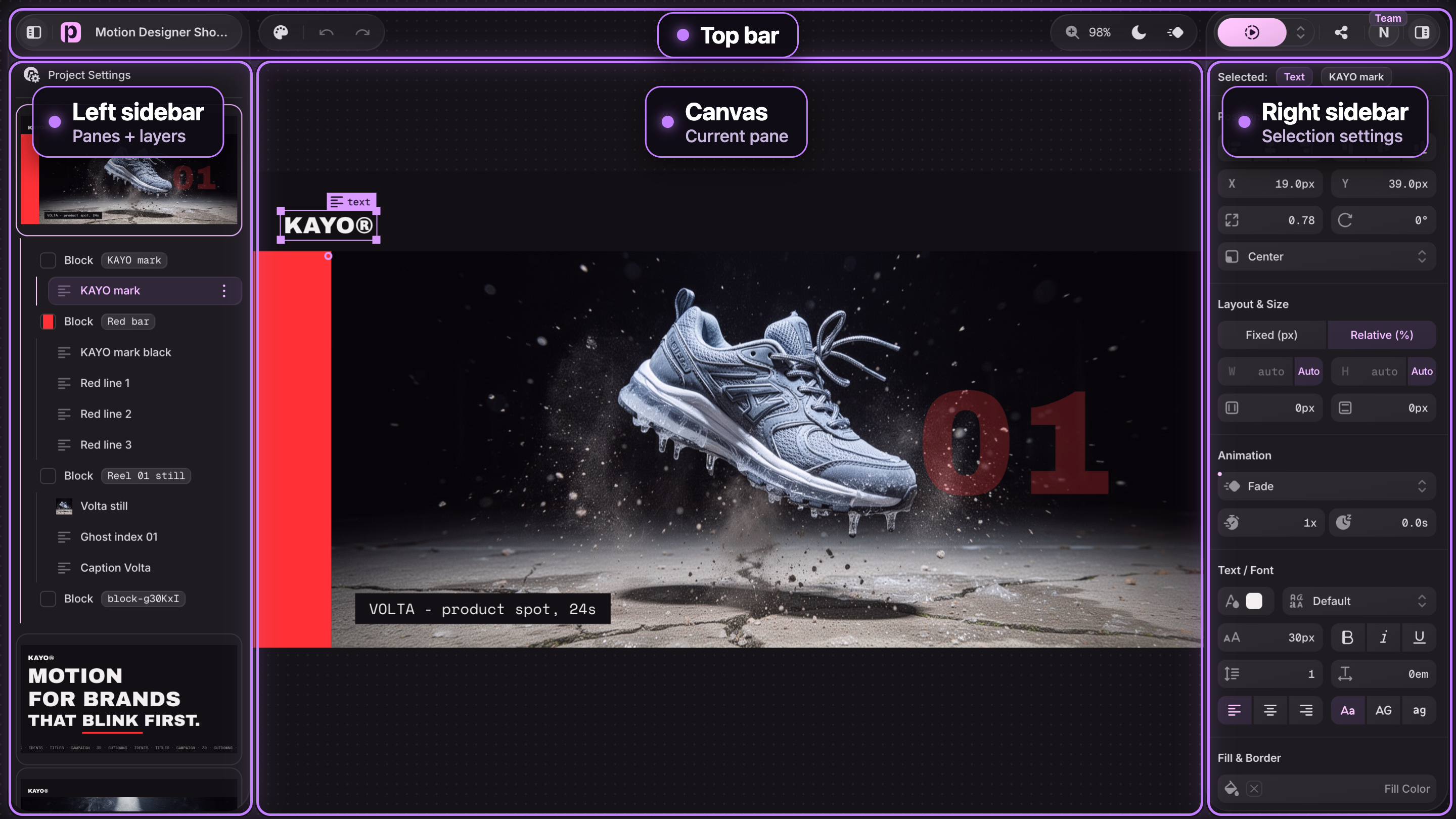
The editor has three zones: a content sidebar on the left, the canvas in the middle, and a settings sidebar on the right. Everything else follows from one rule: select something, and the right sidebar shows its settings.
#Left Sidebar: Panes and Layers
The left sidebar is your project's structure:
- "Project Settings" at the top selects the project itself - canvas size, fonts, colors, navigation, autoplay, and more.
- Below it, the pane list shows a thumbnail for every pane. Click to switch, drag to reorder, double-click to name a pane.
- The current pane expands into a layer tree of its blocks and their elements. Click to select, drag to reorder layers, double-click any item to rename it.
#Canvas
The canvas shows the current pane at design size. Click to select a block or element, drag to move, drag the edges to resize, double-click text to edit it in place (or press F2).
- Zoom with CTRL+ / CTRL-, reset with CTRL0.
- Canvas theme toggles between a dark and light backdrop ("Toggle Dark/Light Canvas" in the top bar, or CTRLD) - useful when your project has a transparent background and you want to see it against both.
- Animation Preview (CTRLA) plays element animations live in the editor instead of showing the settled state.
#Right Sidebar: Settings for the Selection
Whatever is selected - the project, a pane, a block, or an element - its settings appear on the right. If you cannot find a control, you most likely have the wrong thing selected. Press ESC to deselect and step back up to the pane.
When a block is selected, a toolbar appears with the add-element buttons: "Add Text", "Add Image", "Add Video", "Add Shape", "Add 3D Model", "Add Chart", "Add Custom Code", and "Add Background Image" / "Add Background Video".
#Top Bar
- Assets - your project colors, images, videos, and fonts library.
- Undo / Redo - CTRLZ and CTRLZ. Every change is tracked.
- "Preview Project" (CTRLP) - run the slideshow full-screen, exactly as viewers will see it.
- "Export Project" (CTRLS) - sharing, publishing, and all export formats. See Export & Publish.
Your project saves automatically as you edit - there is no save button.
#Panels and Shortcuts
Both sidebars can be toggled: CTRLB for the content sidebar, CTRLE for the settings sidebar. Press ? anytime to open the full shortcuts reference.
#Next
- Core Concepts - the model behind panes, blocks, and elements
- Working With Panes - building your slide sequence
- Keyboard Shortcuts - the full list