Touch Swipe Navigation - Swipe Through Your Slideshows on Any Device
Your slideshows just got a lot more mobile-friendly.
With the new Touch Swipe Navigation, your audience can now swipe between panes using natural touch gestures on phones, tablets, and touchscreen laptops. No buttons, no clicks - just swipe and go.
#Why Touch Swipe Matters
More than half of all web traffic comes from mobile devices. If your slideshow lives on a landing page, in a product demo, or inside a portfolio, your visitors are likely viewing it on a touchscreen. Until now, navigating between panes on mobile required tapping navigation arrows or dots.
Touch swipe changes that. It makes your slideshows feel native - like flipping through photos or browsing a carousel. It's the interaction your mobile visitors already expect.
#How to Enable It
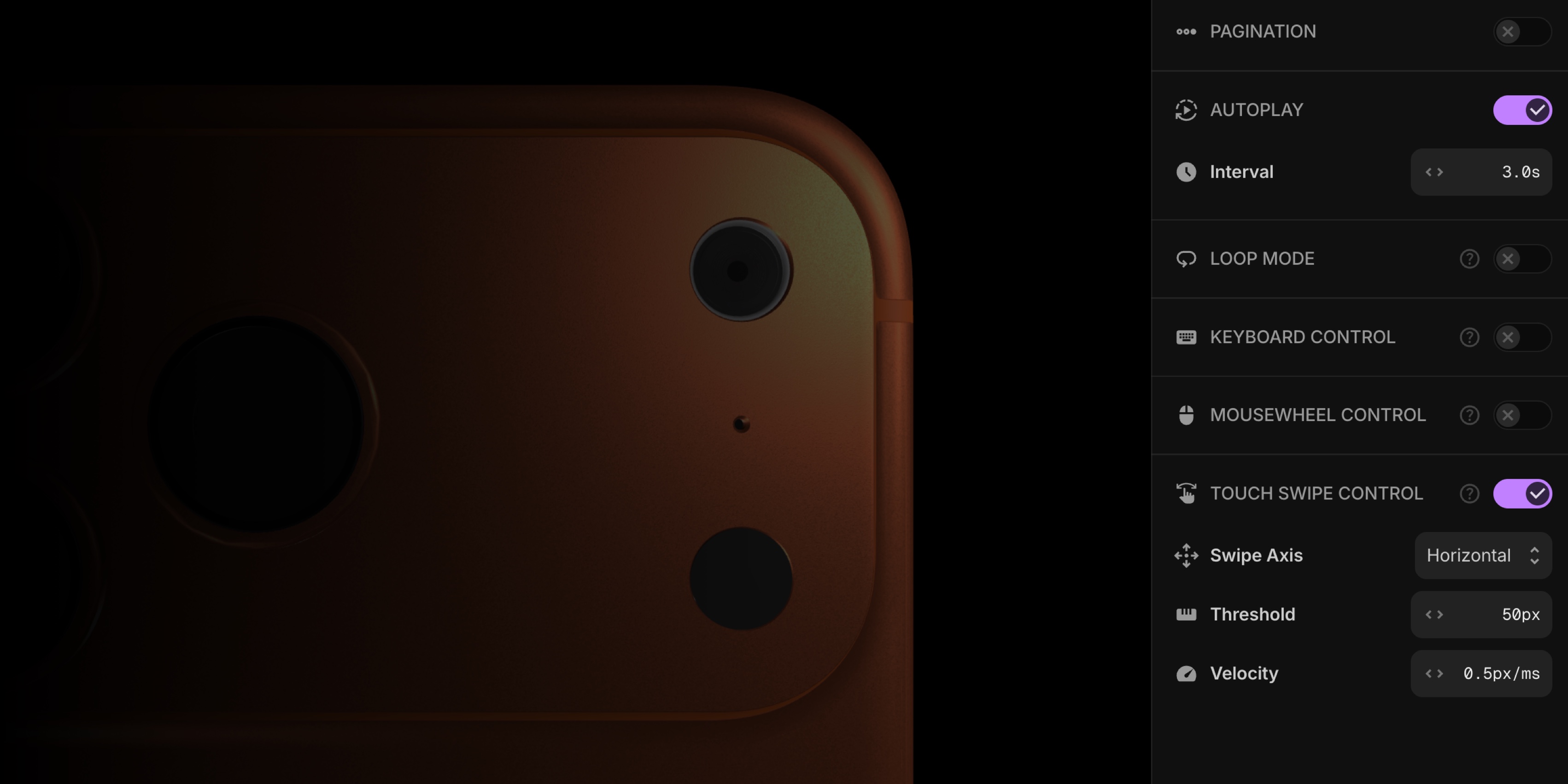
Turning on touch swipe takes seconds:
- Open your project in the PaneFlow editor.
- Go to the right sidebar and expand General Settings.
- Toggle Touch Swipe Control on.
That's it - your slideshow now responds to swipe gestures.
#Fine-Tune the Experience
Every audience is different. PaneFlow gives you full control over how swipes are detected:
| Setting | What it does | Default |
|---|---|---|
| Axis | Restrict swipes to horizontal, vertical, or allow both | Both |
| Threshold | Minimum distance (in pixels) a finger must travel to trigger a pane change | 50px |
| Velocity Threshold | Minimum swipe speed - fast flicks can trigger navigation even below the distance threshold | 0.5 |
These settings let you strike the right balance between responsiveness and accidental-swipe prevention. For instance, a kiosk display might use a higher threshold to avoid unintended navigation, while a mobile product showcase might lower it for maximum fluidity.
#Smart Touch Handling
Touch swipe navigation is built to stay out of the way when it should:
- Taps and buttons still work - the swipe detection only kicks in after the finger moves past the threshold, so interactive elements inside your panes remain fully tappable.
- Multi-touch is ignored - pinch-to-zoom and two-finger gestures pass through without triggering navigation.
- Scroll prevention - once a swipe is detected, page scrolling is paused so the pane transition feels smooth and intentional.
- Cooldown protection - a brief cooldown between swipes prevents rapid-fire navigation from overshooting.
#Works Everywhere You Publish
Touch swipe is part of the core PaneFlow library, so it works across every output format:
- Embedded slideshows on your website
- Published to CDN
- Exported as HTML, React, Vue, or Svelte
- Framer and Webflow integrations
No extra configuration needed after export - the touch handling travels with your slideshow.
#Pairs Perfectly with Other Navigation
Touch swipe joins the existing Keyboard Control and Mousewheel Control options. You can enable all three at once to cover every device and input method:
| Input | Best for |
|---|---|
| Keyboard | Desktop presentations and accessibility |
| Mousewheel | Desktop and laptop browsing |
| Touch Swipe | Phones, tablets, and touchscreen laptops |
Together, they make your slideshows truly universal.
#Try It Out
Swipe into your next project - get started with PaneFlow and build touch-friendly slideshows in minutes.
#Related Posts
- Navigate with Ease Using the Mousewheel
- Navigate Slides Like a Pro with Keyboard Control
- How Export Works in PaneFlow
Don't Miss What's Next
Get updates, design tips, and sneak peeks at upcoming features delivered straight to your inbox.