New in PaneFlow: Text Animations for Engaging Presentations
We just gave your text a whole lot more personality.
With today's update, PaneFlow introduces 5 brand-new text-specific animations designed to make your words move, reveal, and captivate. These aren't standard element effects applied to text - they're built to work with individual characters, words, and numbers, giving you creative control that goes far beyond simple fades and slides.
#The 5 New Text Animations
#Typewriter
The classic typewriter effect reveals your text character by character, just like someone is typing it in real time. It works beautifully for headlines, taglines, and any text where you want to build anticipation.
- Characters appear one at a time in reading order
- Works with multiline text - flows naturally across line breaks
- Great for hero sections, opening statements, and storytelling slides
#Letter Fade
Letter Fade brings a soft, elegant reveal to your text. Each character fades in with a slight stagger, creating a smooth wave-like appearance that feels polished and refined.
- Each letter transitions from transparent to fully visible
- Staggered timing creates a flowing left-to-right reveal
- Perfect for subheadings, quotes, and anything that needs a subtle entrance
#Letter Scale
Letter Scale makes each character grow into place, starting small and scaling up to full size. It's bold, attention-grabbing, and adds real energy to your text.
- Characters scale from small to their final size
- Staggered timing gives a dynamic cascading feel
- Ideal for bold headlines, feature announcements, and impact statements
#Letter Blur
Letter Blur reveals your text by bringing each character from a blurred state into sharp focus. The effect creates a sense of depth, as if your words are coming into view one letter at a time.
- Each letter transitions from blurred to crisp
- Staggered timing adds a cinematic quality
- Works well for creative presentations, portfolios, and immersive storytelling
#Number Roll
Number Roll is built specifically for numeric content. It animates numbers from zero to their target value, creating that satisfying counter effect you see on dashboards and data-heavy presentations.
- Automatically detects numbers in your text and animates them
- Non-numeric text stays untouched
- Perfect for KPIs, stats, pricing pages, and data slides
#How to Add Text Animations
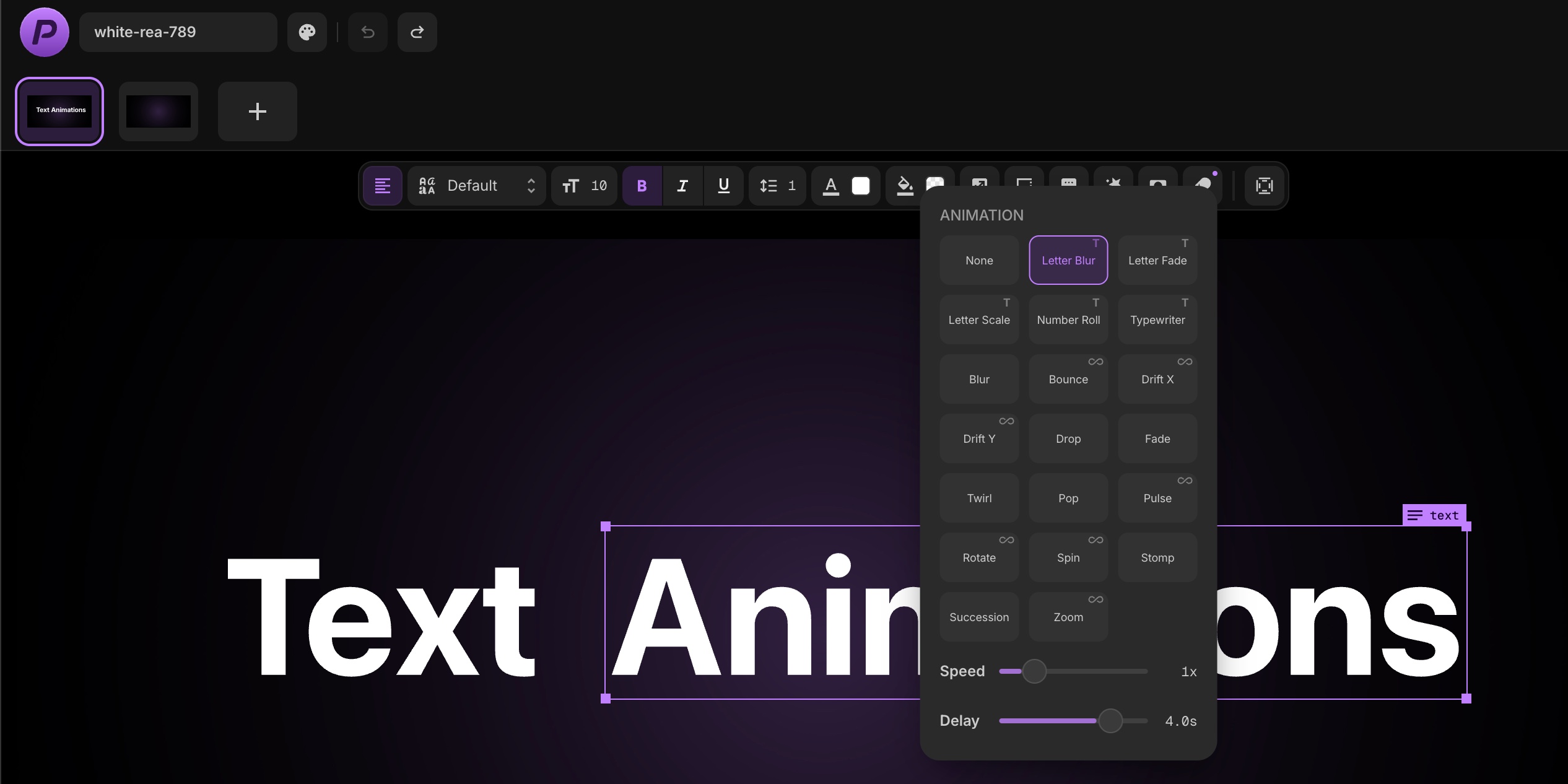
Adding text animations works just like any other animation in PaneFlow:
- Select a text element in your project.
- Open the Animation settings from the floating toolbar or sidebar.
- Choose one of the five text-specific animations from the list.
- Adjust speed, scale, and delay to get the timing just right.
Text animations only appear when you have a text element selected - they're automatically filtered out for images, shapes, and other content types, keeping your animation picker clean and relevant.
#Built for Multiline Text
One thing that sets these animations apart is full multiline support. Every text animation works correctly across line breaks, preserving your formatting and styling. Whether your text wraps across two lines or ten, the animation flows naturally without clipping or layout issues.
#Tips for Using Text Animations
- Combine with element animations - Use a text animation like Typewriter on your heading text while adding a Fade or Drop animation to the containing block for a layered entrance effect.
- Stagger with delays - If you have multiple text elements on the same pane, offset their delays to create a choreographed sequence.
- Use Number Roll for data slides - Any slide with statistics, revenue figures, or percentages becomes instantly more engaging when the numbers count up on entry.
- Keep it purposeful - Text animations work best when they guide attention. A single animated heading on a pane is often more effective than animating every text element.
#What You Can Build With Text Animations
- Startup pitch decks where key metrics roll up from zero as investors watch.
- Product launches with typewriter-revealed taglines that build suspense.
- Portfolio presentations where project descriptions fade in letter by letter for a premium feel.
- Data dashboards that come alive with rolling numbers and stats.
- Landing page heroes with blurred text sharpening into focus as visitors scroll.
#Try Text Animations Today
Text Animations are available now for all PaneFlow users. You can preview them right inside the editor using the Animation Preview toggle - no need to export or publish to see your effects in action.
#Additional Resources
- Introducing Animations - Bring Every PaneFlow Element to Life
- New Feature: Charts in PaneFlow for Enhanced Data Visualization
- How Export Works in PaneFlow
- Why PaneFlow's No-Code Platform is Perfect for Quick Slideshow Design
Don't Miss What's Next
Get updates, design tips, and sneak peeks at upcoming features delivered straight to your inbox.