New In PaneFlow: Live Countdown Text
The holiday season is close, and every sale, launch, and event page wants the same thing: a clock that shows how much time is left. Until now, building one in PaneFlow meant faking it with a static number or pasting in custom code. Now any text element can be a live countdown to a date, ticking every second right in your slideshow.
#Write It in Your Own Words
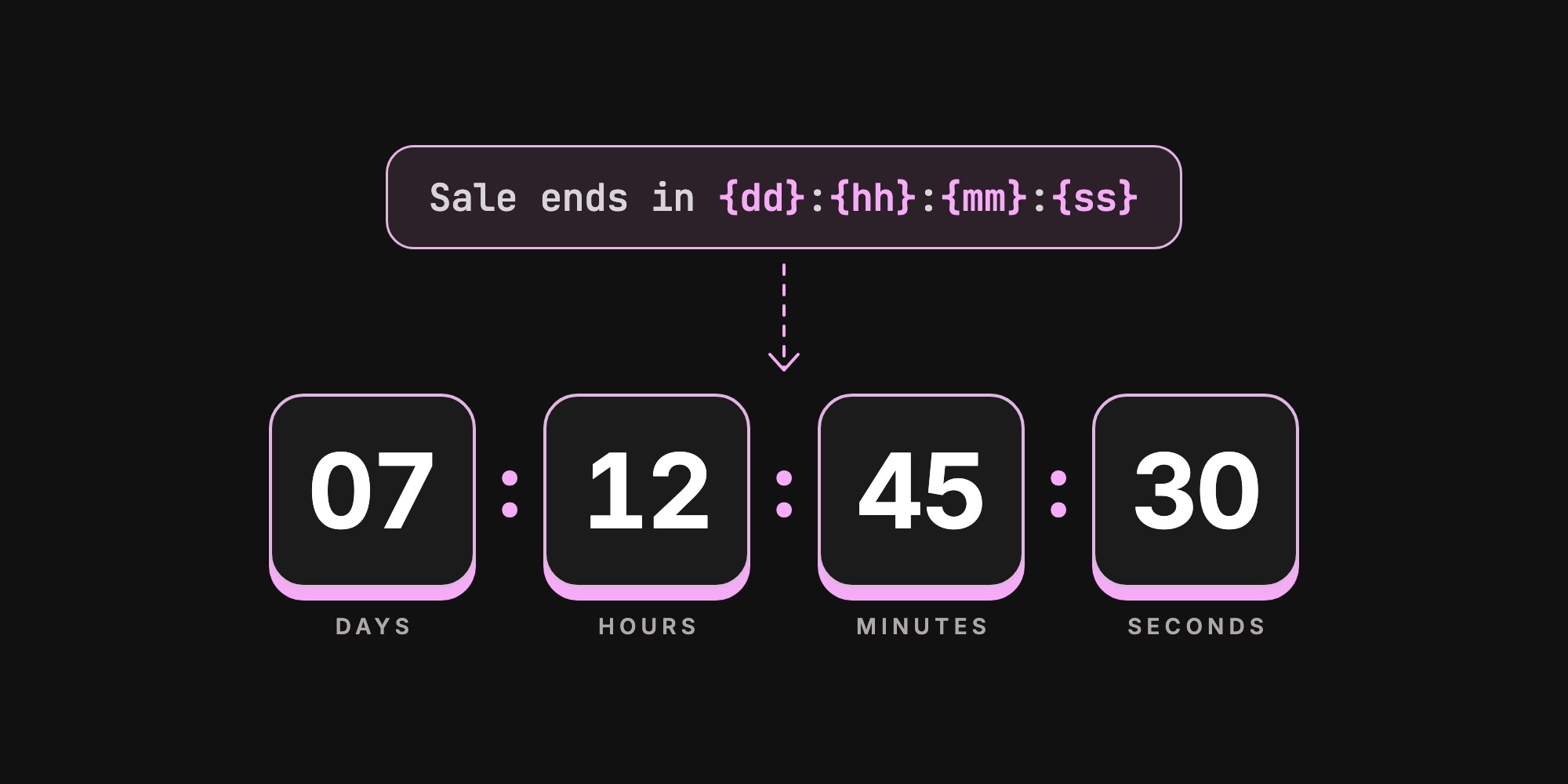
A countdown isn't a separate widget with a fixed layout. It's a regular text element, so it keeps every style you already know: font, size, color, gradient fill, padding, border, and animations. You write the wording, and tokens in the text get replaced with the time left:
{d}{h}{m}{s}- days, hours, minutes, seconds{dd}{hh}{mm}{ss}- the same, zero-padded to two digits
So Sale ends in {d} days {hh}:{mm}:{ss} becomes "Sale ends in 4 days 07:12:45", and Only {d} days left becomes "Only 4 days left". Because you write the words, it works in any language.
To turn it on, select a text element and switch on Live Countdown in the new Countdown section of the sidebar. If the text has no tokens yet, PaneFlow adds {dd}:{hh}:{mm}:{ss} and sets the end to a week from now, so you see it ticking right away. While you edit the text on the canvas you see the raw tokens, and everywhere else you see the live value.
#Ends at the Same Moment for Everyone
Pick the date and time in Ends at. The countdown is saved with your timezone, so "midnight in New York" stays midnight in New York for a viewer in Berlin or Tokyo. Everyone reaches zero at the same instant, which is exactly what a real sale deadline needs.
#Boxed Digits
The classic countdown look puts each unit on its own tile, with small "DAYS", "HOURS" labels underneath. In PaneFlow that's four text elements, {dd}, {hh}, {mm} and {ss}, each with a fill, corner radius, and the same end time.
There's one setting that makes it work: Largest Unit. By default, the largest token you use takes the rest of the time, so {hh}:{mm}:{ss} on its own shows total hours, like 52:13:09. That's what you want for a single "hours left" timer. For tiles, set Largest Unit to Days on each of them, and the {hh} tile shows 0-23 while the days go to the {dd} tile.
#When Time Is Up
When Ended decides what viewers see after the deadline:
- Show Zeros - the countdown stays at 00:00:00
- Show Text - the whole text is replaced with your own message, like "Sale ended" or "We're live!"
- Hide - the element disappears
#Animations Still Apply
Countdown texts work with every entrance animation. Pop the tiles in one by one, blur the clock into focus, or use number-roll to count up to the current time left before it starts ticking. Digits use fixed-width numerals, so the text doesn't jitter as the seconds change.
#Works in Every Export
The countdown runs live in the viewer's browser wherever your slideshow goes: published links, embeds, HTML, React, Vue, Svelte, Next.js, and Paste Into Webflow. Image and PDF exports show the time left at the moment you export, and video exports show it without ticking.
#For AI Agents
The PaneFlow MCP server speaks countdown too. Agents can set countdown_enabled, countdown_target, and the other countdown_* fields on add_text and update_child, and pass countdown_timezone (like "America/New_York") to pin the deadline to a timezone. Ask your assistant for "a Black Friday slideshow with boxed countdown tiles ending at midnight Eastern" and it can build the whole thing.
#Try It Today
Live countdowns are available for everyone. A few ideas to start with:
- Holiday sales - Black Friday, Cyber Monday, Christmas, and end-of-year deals for online stores
- Product launches - "Launching in 3 days" on a teaser slideshow
- Events and webinars - doors open, registration closes, the stream goes live
- New Year - the one countdown everyone watches
Marketers get urgency without a developer, and designers keep full control over the look. Open a project, select a text, and switch on Live Countdown in the sidebar. Don't have a project yet? Start from one of our templates.
#Additional Resources
Don't Miss What's Next
Get updates, design tips, and sneak peeks at upcoming features delivered straight to your inbox.