New In PaneFlow: Real Groups, Stacks, and Copy-Paste Between Projects
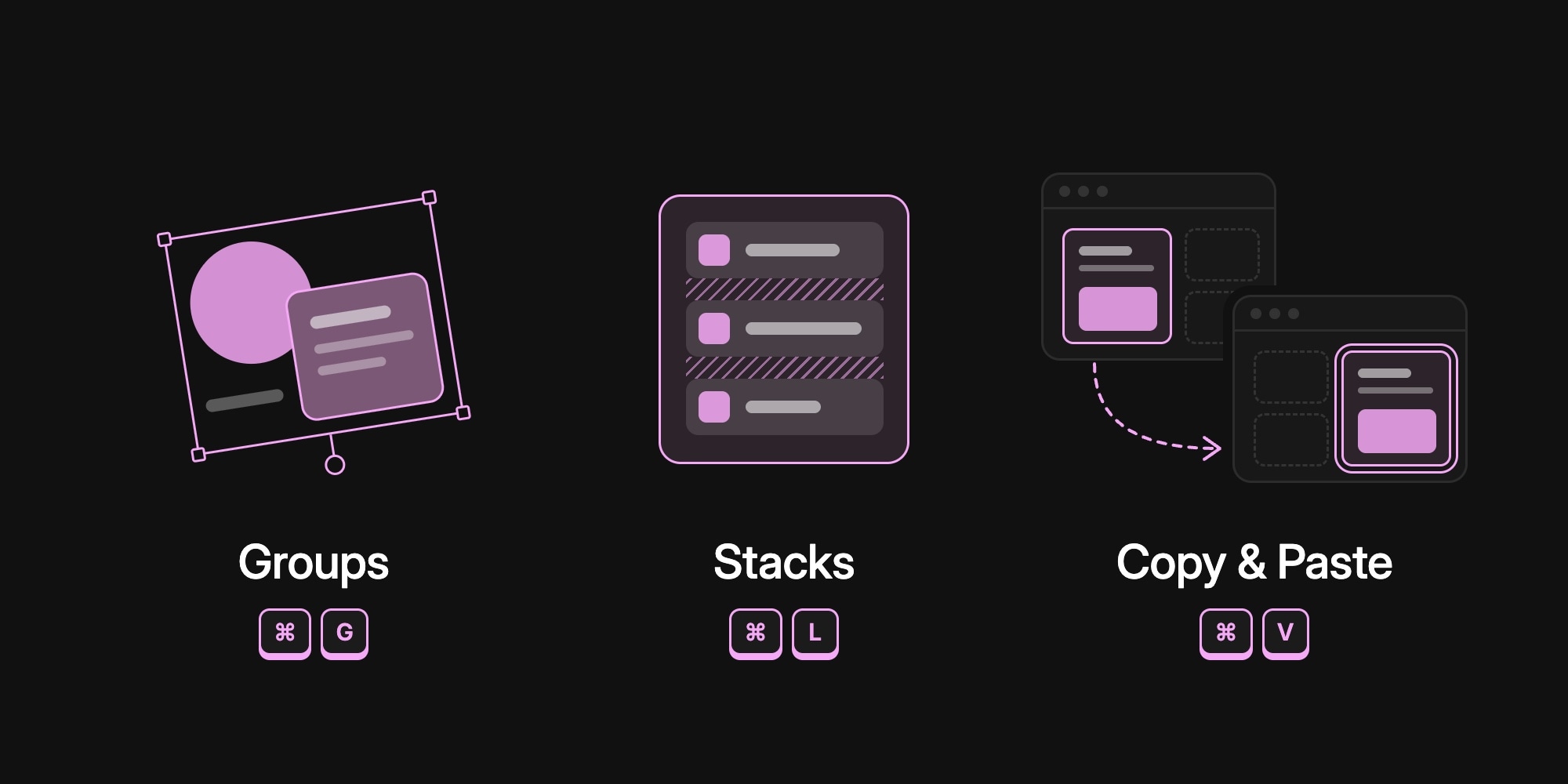
This update changes how you organize and reuse content in PaneFlow. You can now group elements the way you do in Figma, Sketch, or Keynote. What we used to call groups are now Stacks, a name that fits what they actually do. And copy-paste now goes through your system clipboard, so blocks and elements move between panes, browser tabs, and whole projects.
Here's what's new.
#Groups - Move Elements Together, Keep Their Layout
A group bundles elements so they behave as one. Move the group and everything inside moves with it. Rotate or scale it and the whole arrangement turns and grows around its center. Each element keeps the exact position you gave it - the group doesn't lay anything out, it just carries its content around.
Some typical groups:
- A logo with its caption
- A phone mockup with the callouts pointing at it
- A cluster of decorative shapes
- A headline, a subheading, and a button that should enter together
#Creating and Ungrouping
Select two or more elements in the same block and press CTRLG, click Group in the floating toolbar, or right-click and choose Group Selection. Nothing moves: the elements stay exactly where they were, on every pane the block appears on.
To ungroup, select the group and press CTRLG, or click Ungroup. The elements go back to where they came from and still don't move. The group's position, rotation, and scale on each pane are baked into each element, so a rotated group ungroups into rotated elements, pixel for pixel.
#Animate and Transition as One
Groups work with everything that makes PaneFlow slideshows move:
- Per-pane transforms - move, rotate, or scale a group differently on each pane, and PaneFlow animates the difference during the transition.
- Animations - give the whole group an entrance or looping animation, while the elements inside keep their own.
- Opacity and Parallax - fade or add depth to everything inside at once.
- On Click - one click action for the whole group.
You never set a transform origin on a group. PaneFlow keeps its pivot at the center of its content as you edit what's inside, so rotations and scales always look right.
#Working Inside a Group
- Click to drill in. The first click on the canvas selects the outermost group. Click again to go one level deeper, into a nested group and then the element itself. Once you're inside, clicks on neighboring elements stay at that level. + click adds siblings to the selection.
- Nested groups. Put groups inside groups, and stacks inside groups, up to 5 levels deep.
- Layers list. The sidebar shows the full tree. Drag elements into, out of, and between groups and stacks at any level, and they keep their place on the canvas while they move.
- Screen-aligned editing. Inside a rotated or scaled group, dragging an element or nudging it with the arrow keys follows the screen, not the group's tilted axes.
- Paste into a group. With a group selected, new and pasted elements go straight into it, and land where they would have landed in the block, even if the group is rotated or scaled.
Groups are included in every export format: HTML, React, Vue, Svelte, Next.js, Webflow, video, images, and PDF.
#Stacks - What We Used to Call Groups
Until now, "group" in PaneFlow meant something different: a layout container that lines its elements up in a row or column, with a gap, padding, fill, and border. That's closer to auto layout in Figma or flexbox in CSS than to a design-tool group, so we renamed it to Stack.
Nothing about how stacks work has changed:
- Select elements and press CTRLL (it used to be CTRLG) to stack them. Press it again to unstack.
- Set direction, gap, and alignment in Layout & Size.
- Give a stack a fill, border, corner radius, padding, and shadow. Fill plus padding plus a large radius turns a stack into a pill or button with its content always centered.
Your existing projects are converted automatically. Every group you created before is now a stack, looking and behaving exactly as it did.
#Group or Stack?
| Group | Stack | |
|---|---|---|
| Positions its elements | No - each keeps its own X/Y | Yes - row or column with a gap |
| Fill, border, padding | No | Yes |
| Moves and animates | Everything inside, as one unit | Everything inside, as one unit |
| Can contain | Any element, groups, and stacks | Plain elements only |
| Shortcut | CTRLG | CTRLL |
Reach for a group when the arrangement is hand-placed and you just want it to travel together. Reach for a stack when the elements should line up and space themselves.
A note for developers: in exported code, stacks now use the paneflow-stack class, and paneflow-group belongs to the new groups. Code you've already exported is unaffected, but if your custom CSS targets .paneflow-group, switch it to .paneflow-stack the next time you export.
#Copy-Paste Through the System Clipboard
Copy and paste in PaneFlow used to live in the editor's memory. It worked within one project in one tab, and that was it. Now it goes through your system clipboard, like in any other design tool.
- Across panes, tabs, and projects. Copy a block or elements in one project, open another project, and paste. Images and videos are copied along with them.
- Canvas size aware. Pasting into a project with a different canvas size rescales the content to fit.
- Pasting never replaces a block. Blocks paste into the empty cell under your mouse, keeping their original size when it fits.
#Paste a Copy or a Reference
This is the part that changes how you work with blocks. Before, copying a block and pasting it gave you a reference: the same block placed on another pane, sharing its content with the original. That's the heart of PaneFlow transitions, but it was also a surprise when you just wanted a second, independent block to edit.
Now pasting gives you what you'd expect from any other app, and the reference is one extra key away:
| Action | Shortcut | Context menu on an empty cell |
|---|---|---|
| Copy block | CTRLC | - |
| Paste a copy | CTRLV | Paste Block |
| Paste a reference | CTRLALTV | Paste Block Reference |
Paste Block gives you an independent copy: editing it never changes the original.
Paste Block Reference places the same block on another pane. Content is shared, while its position on the grid and its element transforms are per pane, so PaneFlow animates between the two placements. Use it whenever you want a block to morph from one pane to the next - see Transitions & Morphing.
Elements work the same way: select them, press CTRLC, select a block (or a group) anywhere, even in another project, and press CTRLV. You can also right-click an element and choose Copy.
#One More Thing: Strikethrough Text
A small one: text elements now have a strikethrough style, next to bold, italic, and underline in the font style controls. Toggle it with CTRLX. Handy for old prices, crossed-out to-do items, and "before and after" copy.
#For AI Agents
Everything above is available in the PaneFlow MCP server too. Agents can create groups (add_group), ungroup, nest new elements into groups and stacks with parent_id, and move elements between containers while keeping them in place. Stacks are now add_stack and add_child_to_stack.
#Try It Today
Groups, stacks, and the new copy-paste are live for everyone. Open one of your projects, select a few elements, and press CTRLG. Or copy a block you like from one project and paste it into another.
Designers get the grouping habits they already have from Figma and Keynote. Marketers and agencies can build a library of their best blocks - a hero, a pricing card, a testimonial - and paste them into every new slideshow instead of rebuilding them. Don't have a project yet? Start from one of our templates.
#Additional Resources
- Groups
- Stacks
- Working With Blocks
- Transitions & Morphing
- Keyboard Shortcuts
- How Export Works in PaneFlow
Don't Miss What's Next
Get updates, design tips, and sneak peeks at upcoming features delivered straight to your inbox.