Import Panes From Another Project
Every PaneFlow user ends up with a few panes they keep wanting to reuse. A branded intro. A pricing slide with a chart that took a while to get right. An interactive menu with "go to pane" buttons. A block that enters with a specific animation and exits with a specific transition.
Until now, getting one of those into a new project meant rebuilding it by hand. And rebuilding a pane is not just placing blocks again. It means re-doing every animation, delay, transition direction, and per-pane override. Animations in particular were effectively impossible to copy between projects.
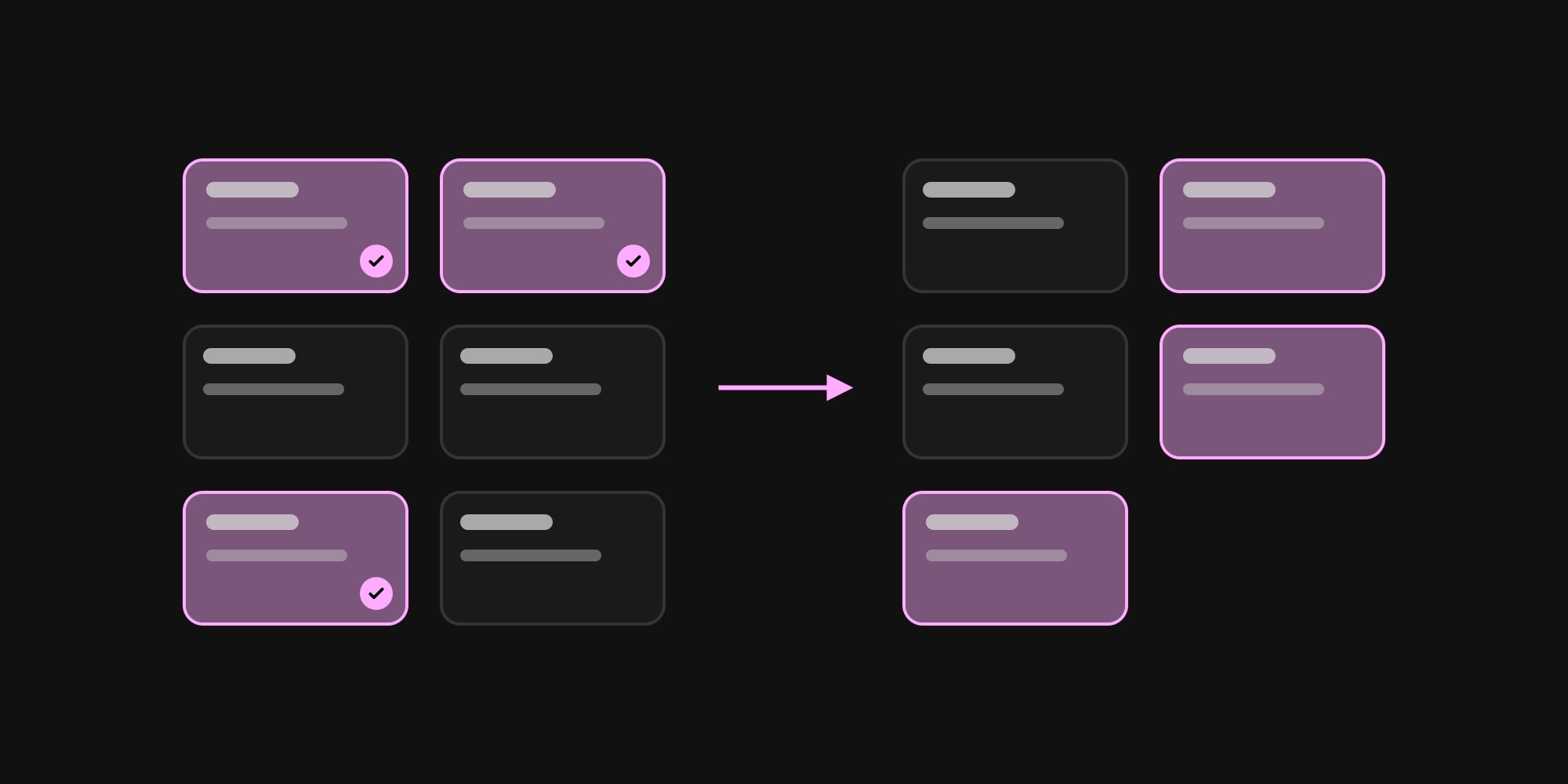
Today that changes. You can now import panes from any of your other projects directly into the one you are working on.
#Where To Find It
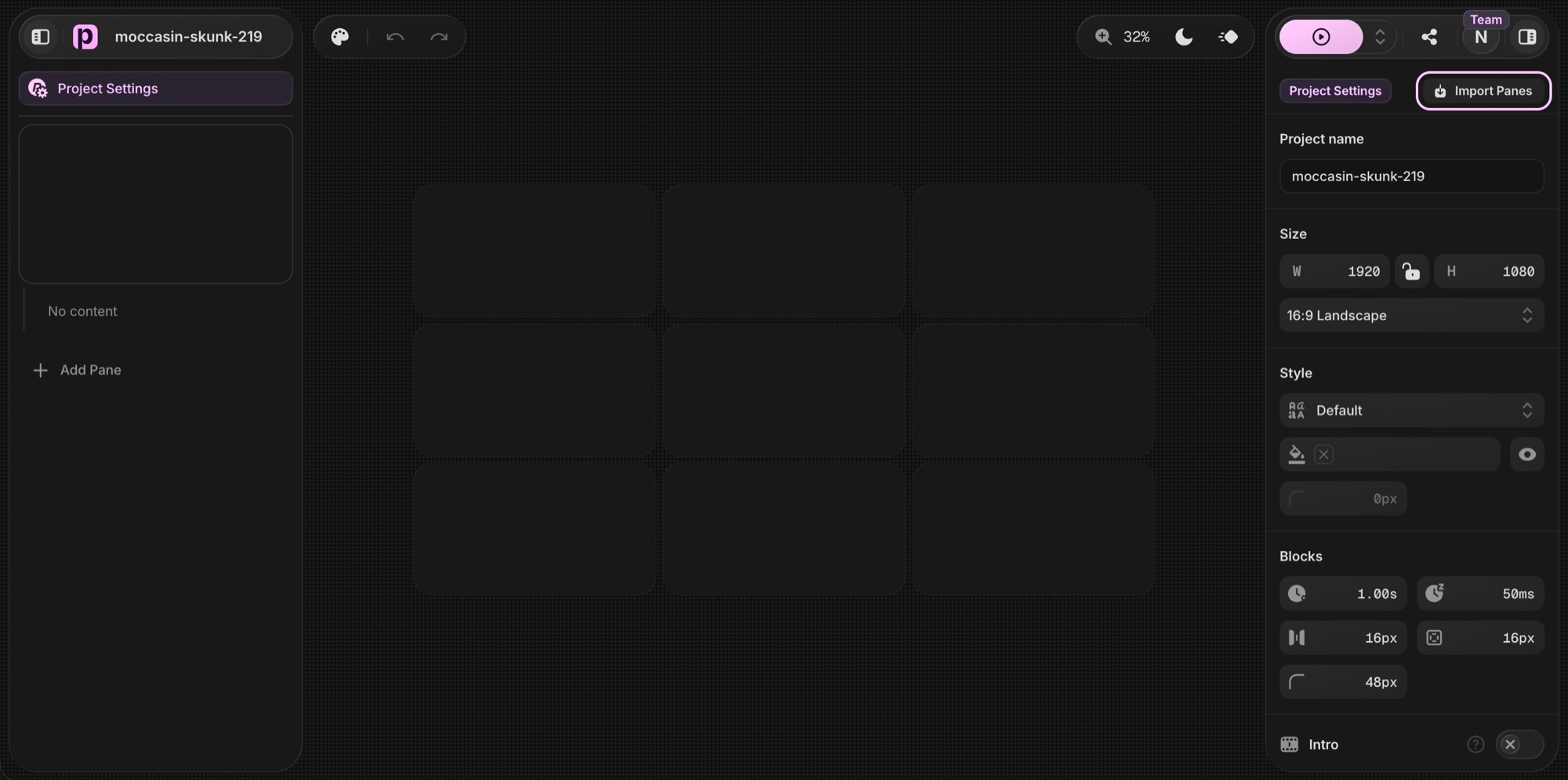
Open any project and go to Project Settings in the sidebar. At the top you will find the new Import Panes button.
#How It Works
Clicking the button opens the import popup. On the left you see all projects you have access to, including team projects. Pick one, and its panes show up as live previews on the right.
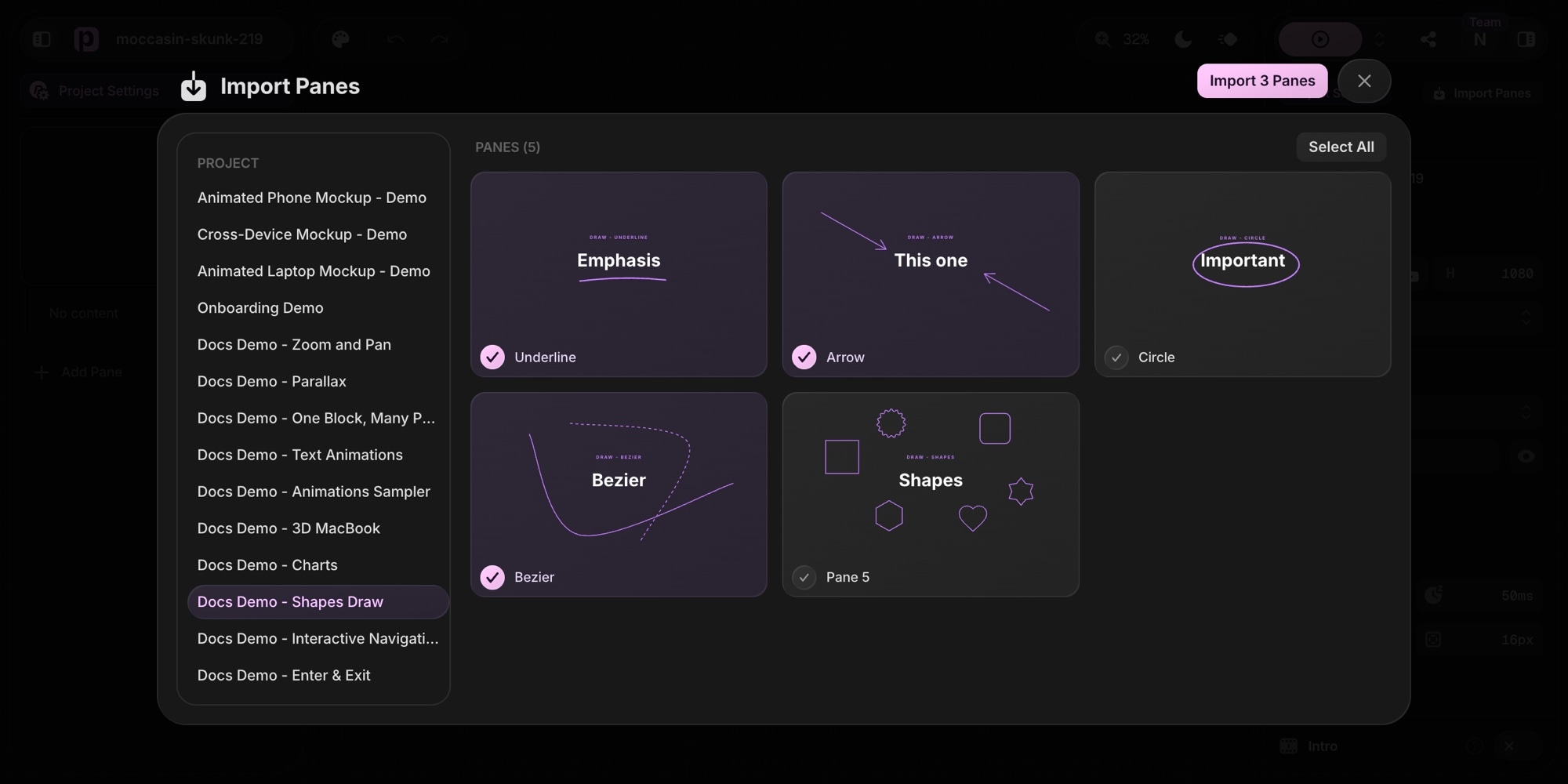
- Select a source project from the list
- Click the panes you want to import, or hit Select All
- Click Import N Panes
The imported panes are appended to the end of your current project, in the same order they had in the source. The editor jumps straight to the first imported pane so you can start editing right away.
#What Gets Copied
This is a real deep copy, not a screenshot of a layout:
- Blocks and all their content - text, images, videos, shapes, charts, code, 3D models, groups
- Animations and transitions - enter and exit directions, animation types, durations, delays, per-pane overrides
- Shared blocks stay shared - if two imported panes use the same block with a morphing transition between them, that transition survives the import
- Interactive navigation - "go to pane" click actions that point at another imported pane are remapped to follow it
- Media files - images, videos, and other uploads are copied into the target project, so deleting the source project later does not break anything
Every imported pane, block, and element gets a fresh id, so nothing collides with what is already in the project.
#Different Canvas Sizes
Importing from a 1920 x 1080 project into a 1080 x 1080 one? All positions and sizes are rescaled to the target canvas width, so the imported panes land proportionally correct instead of overflowing the edges.
#Undo Works Too
An import is a regular edit. If you change your mind, Cmd + Z removes the imported panes and puts you back where you were.
#Build Your Own Library
The nicest side effect of this feature: you can now keep a "library" project. Put your best intros, outros, section dividers, and animated components in one place, and pull them into every new project in a couple of clicks. Combined with team projects, this becomes a shared component library for everyone on the team.
Open Project Settings, click Import Panes, and give it a try.
Don't Miss What's Next
Get updates, design tips, and sneak peeks at upcoming features delivered straight to your inbox.