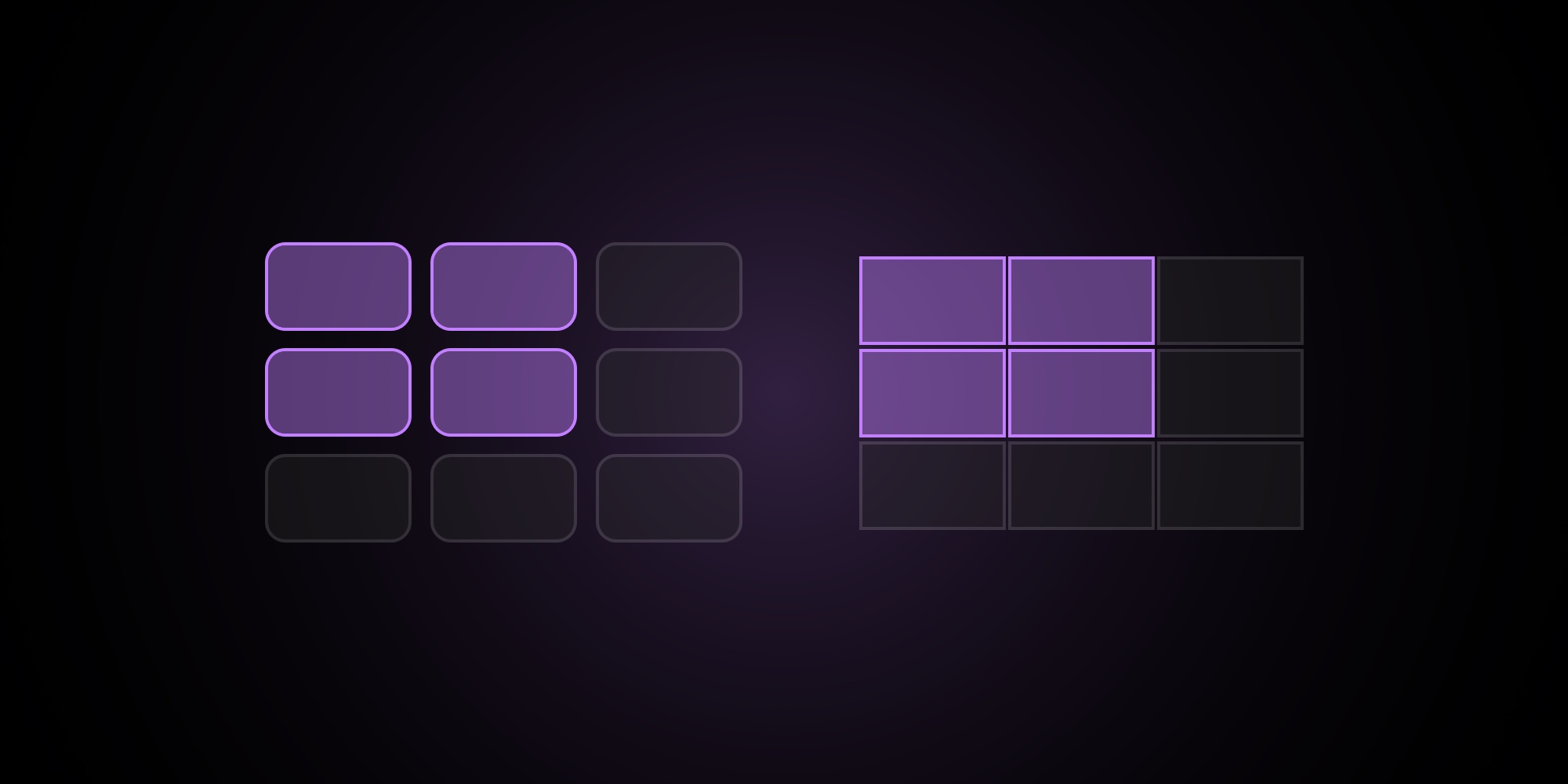
Per-Pane Layout Overrides That Animate Between Panes
Until now, PaneFlow's block layout values - border radius, gap between blocks, and pane padding - lived only at the project level. Every pane shared them. That's clean, but it leaves a gap: sometimes you want one pane to feel different. A full-bleed hero, a tight contact sheet, a roomy bento layout - each calls for different spacing and corner softness.
Today we're shipping per-pane overrides for all three values, plus a per-block override for border radius. Set them on a single pane, and PaneFlow will smoothly animate the transition into and out of that pane.
#What You Can Override
You can now override the project's defaults at two levels:
Per pane:
- Block border radius
- Gap between adjacent blocks
- Pane padding around blocks
Per pane and block (one specific block on one specific pane):
- Block border radius
The pane-level override replaces the project value on that pane only. The block-level override wins over both, letting one tile stand out from its neighbors on a single pane.
#How To Set Overrides
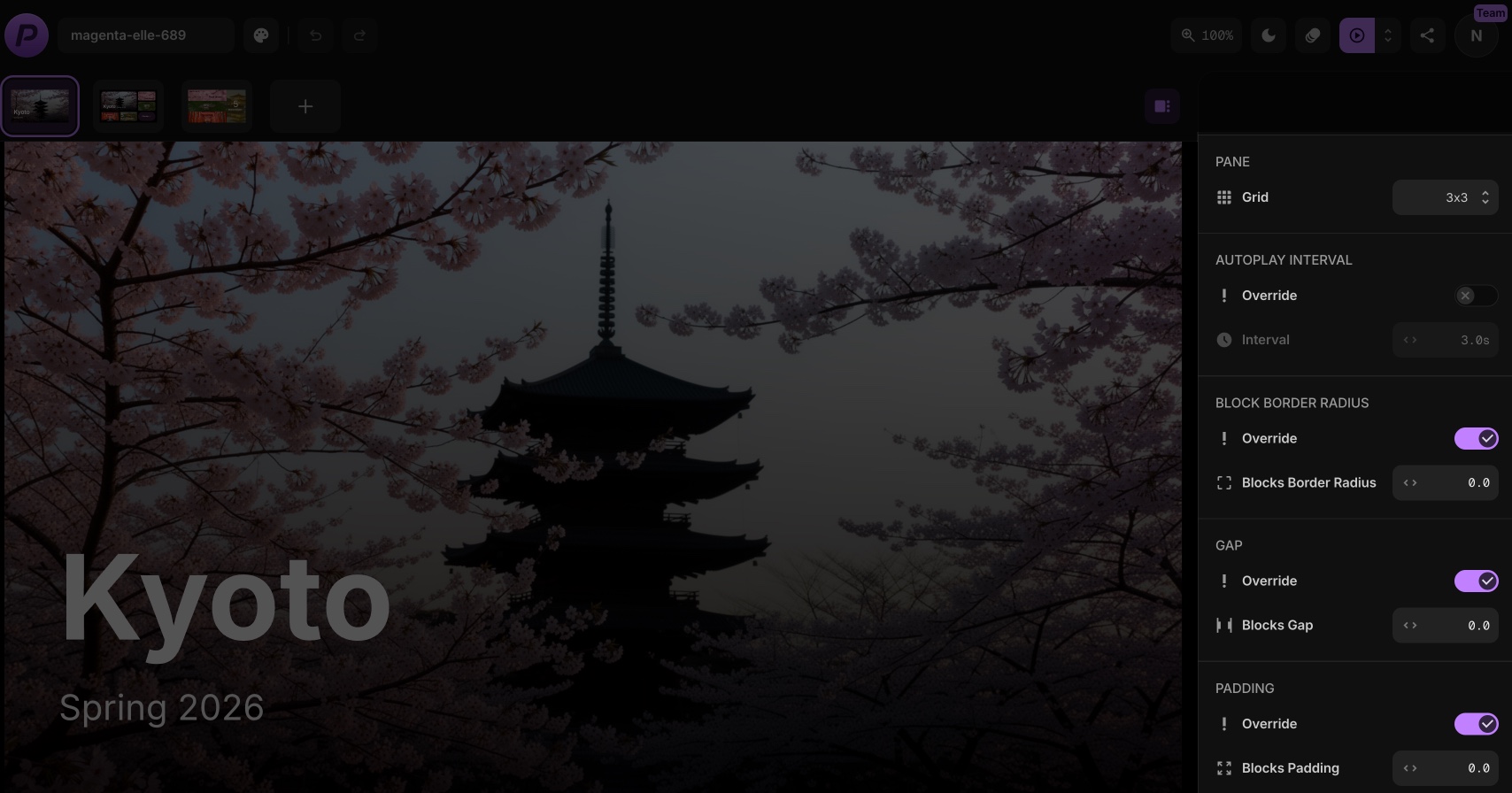
Each override follows the same pattern you already know from the autoplay interval override:
- Select a pane (or a block on a pane)
- In the sidebar, find the Block Border Radius, Gap, or Padding section
- Toggle Override on
- Adjust the value
When you enable an override, the value is seeded from whatever was active before (project value, or the pane override if you're on a block). Toggle it off and the pane returns to inheriting from the project.
#Why This Matters: Animated Layout Shifts
This is the part that makes the feature fun. When the same block appears on two panes with different override values, PaneFlow animates between those values during the transition. So a block can:
- Pull in from the edges as padding increases
- Spread apart from neighbors as gap grows
- Soften its corners as border radius rises
- Do all three at once
You're not just changing how a pane looks. You're choreographing a layout change.
#A Simple Demo: Three Panes, Three Layout Feels
Here's a clean three-pane sequence that shows what overrides unlock. Same project, same blocks reused across panes, just different overrides on each.
Pane 1 - Full-Bleed Hero
- Overrides: padding
0, gap0, block border radius0 - A single hero block spans the entire
3 x 3grid - Big headline overlay, edge-to-edge image
Pane 2 - Bento With The Hero
- Overrides: padding
3, gap1, block border radius2 - The same hero block, now placed at
2 x 2in the top-left - A featured-tile flourish: per-block border radius
4on the hero, so it reads as the focal point while neighbors stay at2 - Supporting tiles fill the remaining cells (peak bloom dates, average temp, torii gates photo, must-see count, plan-trip CTA)
Pane 3 - Edge-To-Edge Contact Sheet
- Overrides: padding
0, gap0, block border radius0 - Hero is dropped, supporting tiles expand to fill the canvas
- A taller "5 Must-see temples" block on the right anchors the layout
What makes this fun is the motion between them. Pane 1 to Pane 2: the hero physically pulls in from the edges, gains rounded corners, and shrinks into a tile while neighbors slide in around it. Pane 2 to Pane 3: the spacing collapses, corners sharpen, and the layout reflows into a tighter contact-sheet feel. Three panes, three distinct moods, and the transitions handle themselves.
#Try It Now
Open any project, click into a pane, and look for the new Block Border Radius, Gap, and Padding sections in the sidebar. The fastest way to feel the feature is to set up two panes with the same block placed on both, then push the overrides on one pane and navigate between them.
If you build something nice with this, we'd love to see it.
Don't Miss What's Next
Get updates, design tips, and sneak peeks at upcoming features delivered straight to your inbox.